
Questo articolo è disponibile anche in lingua italiana, al seguente link – Azure Communication Services: il sostituto al servizio SMTP Auth – WindowServer.it
With Microsoft deprecating legacy SMTP relay capabilities in Office 365, organizations need a robust, scalable, and secure alternative for application-based email delivery. Azure Communication Services (ACS) offers a modern platform for transactional, notification, and system-generated emails, supporting advanced authentication, domain management, and compliance features.
This article walks you through the process of configuring ACS as your new SMTP relay, based on real-world implementation steps and expert insights.
Discover Azure Communication Services
Why ACS? Azure Communication Services is a cloud-based platform from Microsoft that provides APIs and SDKs to integrate multi-channel communication features—such as voice, video, chat, SMS, and email—directly into your applications, websites, or business services. ACS is built on the same reliable and scalable infrastructure that powers Microsoft Teams, ensuring enterprise-grade performance and security.
ACS is ideal for organizations looking to modernize communication with customers and users, replace legacy systems (such as old SMTP relays), or enable new digital scenarios without building communication infrastructure from scratch.
How Does it Works?
- APIs and SDKs: ACS offers REST APIs and client libraries for various programming languages and platforms (JavaScript, .NET, iOS, Android). This allows developers to easily add real-time communication features to their solutions without needing deep expertise in underlying technologies like VoIP or media encoding.
- Multi-channel Support: You can integrate voice calls, video calls, text chat, SMS, and email. ACS enables you to acquire phone numbers through Azure for SMS or calling, or connect custom email domains for application-driven email delivery.
- Scalability and Security: ACS is designed to automatically scale according to your needs and complies with major security and privacy standards (HIPAA, GDPR, SOC 2).
- Identity Management: ACS is identity-agnostic, meaning you can choose how to authenticate and identify end users, integrating ACS with your own authentication systems.
- Teams Integration: ACS can be connected to Microsoft Teams, enabling scenarios where external users can join Teams meetings via custom apps.
Deployment
The first step is create a resource group. Organize your ACS components within a dedicated resource group for easier management and cost tracking. Choose your subscription, assign a meaningful resource group name and select the appropriate region.
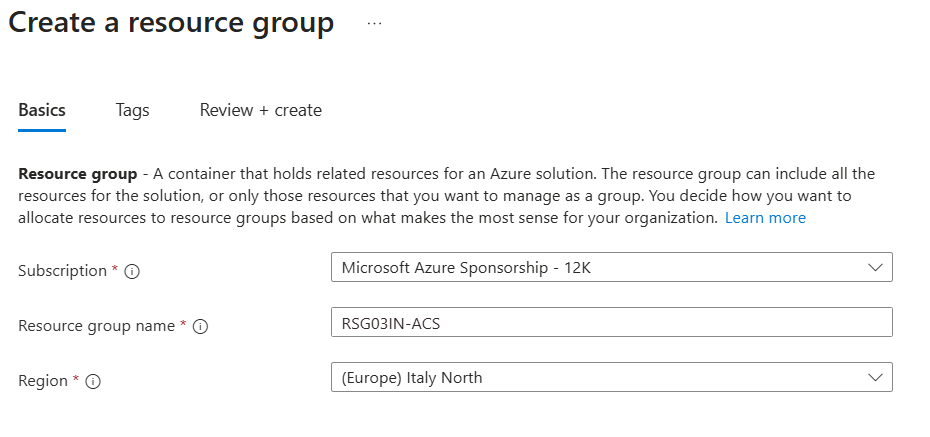
Note: Optionally, add tags for cost management or environment tracking.
Now we can create an Email Communication Service: Within your resource group, add a new “Communication Services” resource. This will provide the APIs and endpoints for email, SMS, chat, and telephony.
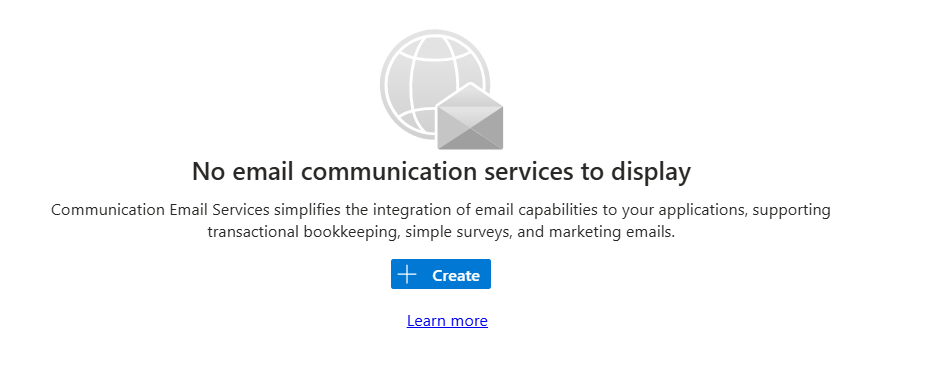
Note: Some resources are global and work across Azure regions.
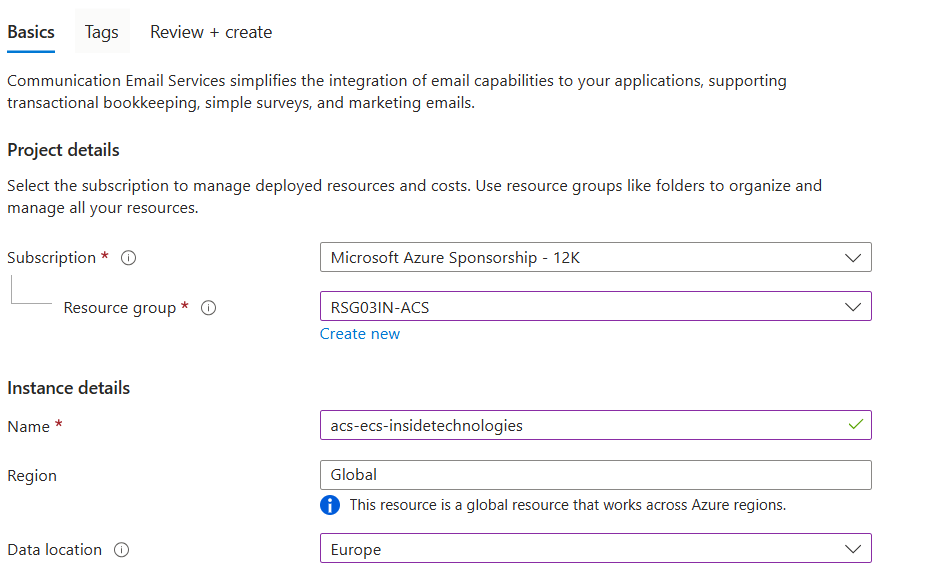
To send emails from your organizational domain, you must verify ownership:
- Add Domain: In the ECS settings, add your custom domain.
- DNS Verification: You’ll be prompted to add a TXT record to your DNS provider.
- Verification: Once the DNS record propagates, refresh the ECS portal to confirm the domain status is “Verified”.

Proper authentication, you must configure some DNS ensures your emails are trusted and not flagged as spam:
- SPF: Ensure your domain’s SPF record includes Microsoft’s servers (e.g., include:spf.protection.outlook.com). If your domain is already used in Microsoft 365, this may be preconfigured.
- DKIM: Enable DKIM signing in the ECS portal. You may need to add CNAME records as instructed.
- DMARC: (Optional but recommended) Add a DMARC record to your DNS for additional protection.
Once you have created and validated the records, you will be able to proceed.
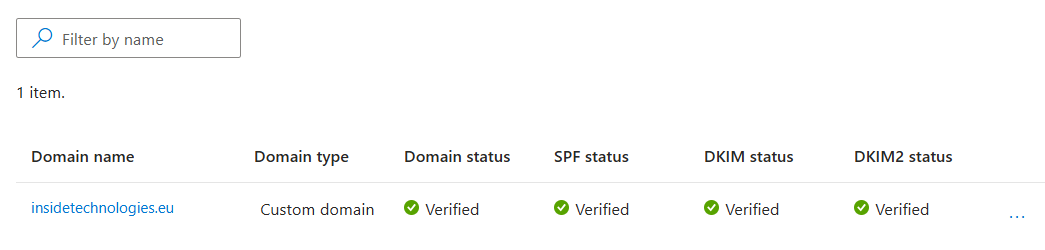
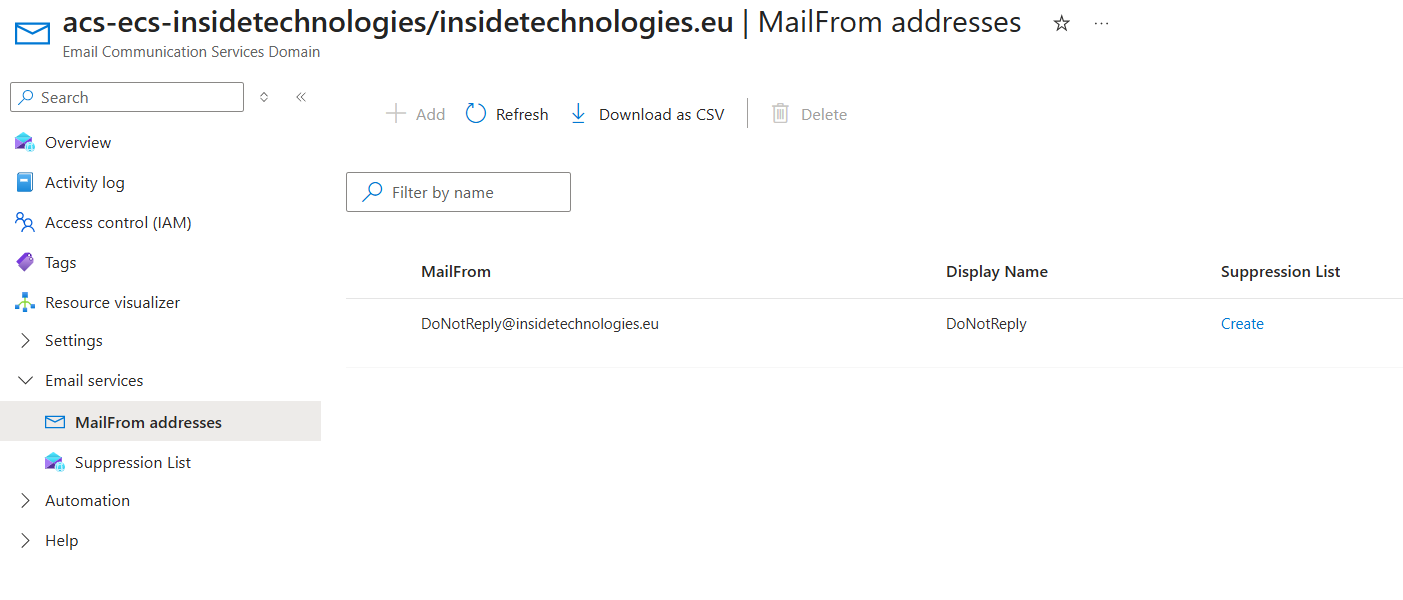
Next step is manage the MailFrom Addresses. When you configure Azure Communication Services for email delivery, by default you can use only the alias DoNotReply; Microsoft enforces this limitation to protect your domain’s sender reputation and to prevent spam or abuse. Gradually increasing email volume and monitoring delivery rates helps ensure reliable email delivery.
Configure Email Communication Service
A Communication Service is an Azure resource you create inside a subscription/resource group. It acts as the technical endpoint that hosts ACS capabilities for your tenant – exposing endpoints, keys, and configuration surfaces (e.g., Email, Telephony & SMS) used by your applications. In the portal you’ll see pages like Overview, Manage keys, Email, Telephony and SMS, and SMTP Usernames on this resource.
To configure a new Communication Service, is necessary assign it on a Resource Group.

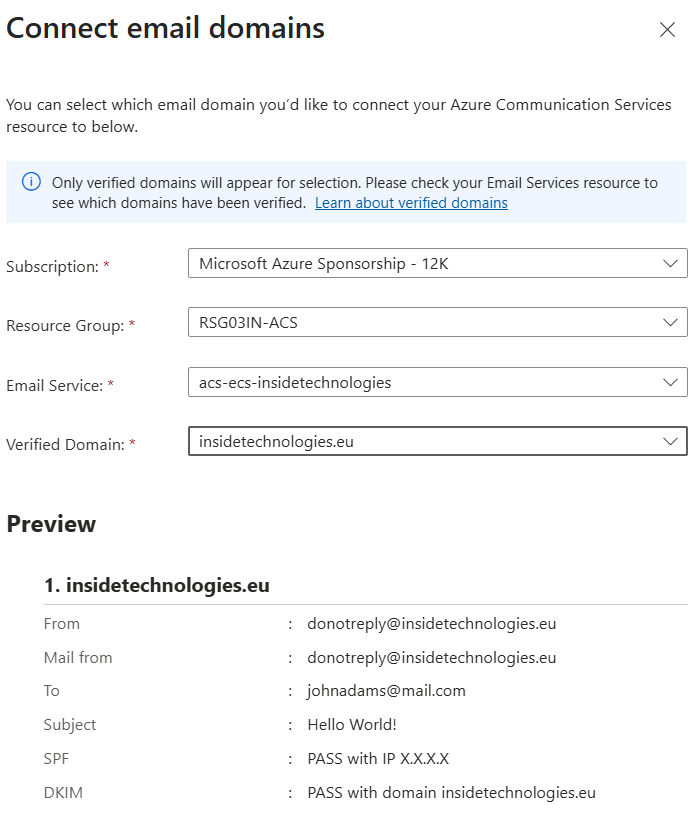
After this, we will be able to configure the Email part.
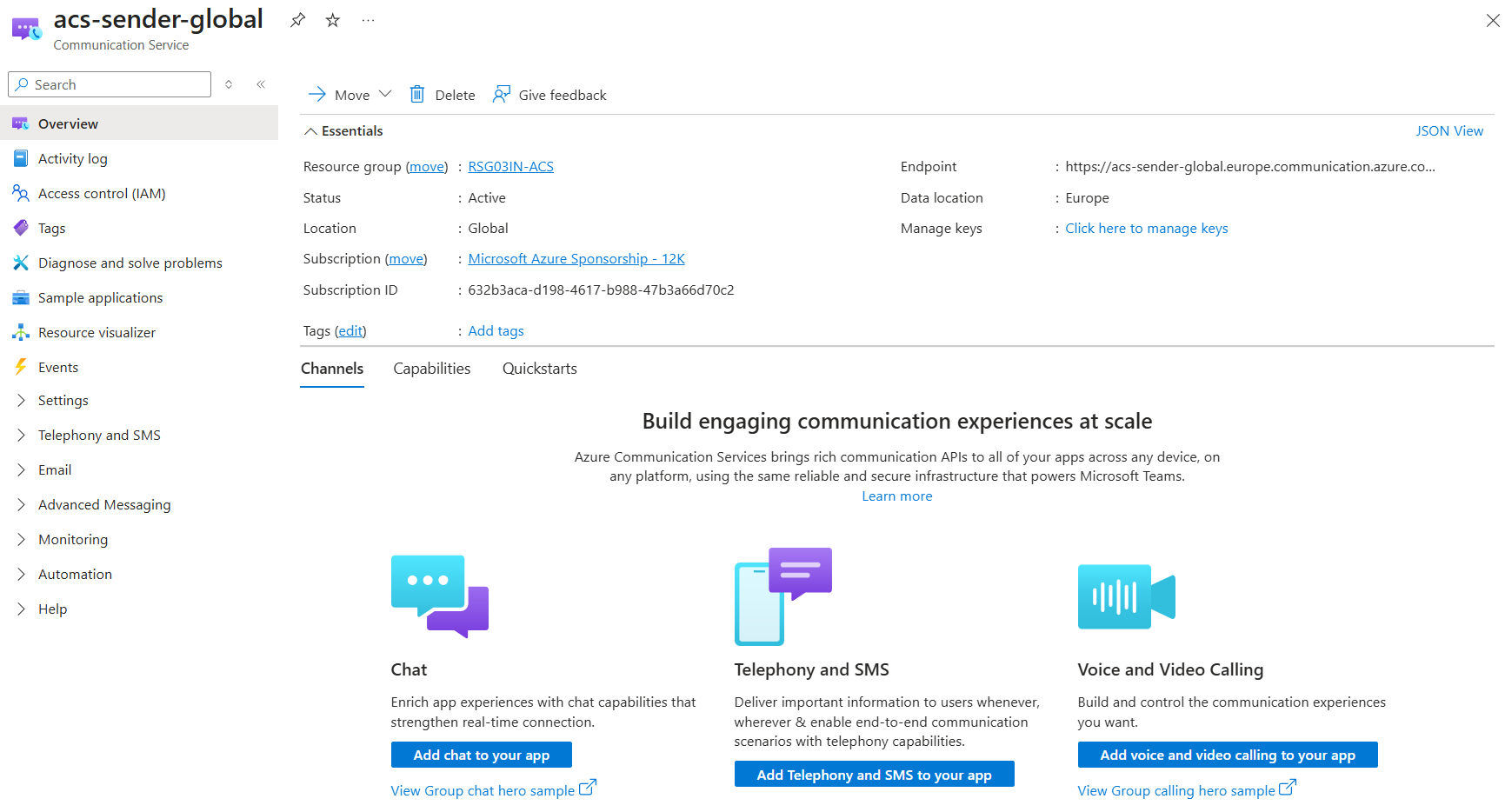
Note: Each communication service manage one or more domain, but the tip is create a dedicated resource if you have more than one domain that must send email.
Register an Application in Microsoft Entra
Ok but how an application can send the email? What is the procedure to authenticate the alias? The response is an application in Microsoft Entra. To securely authenticate your applications with ACS, create a new App Registration and generate a client secret for the application, that will be used as the SMTP password.
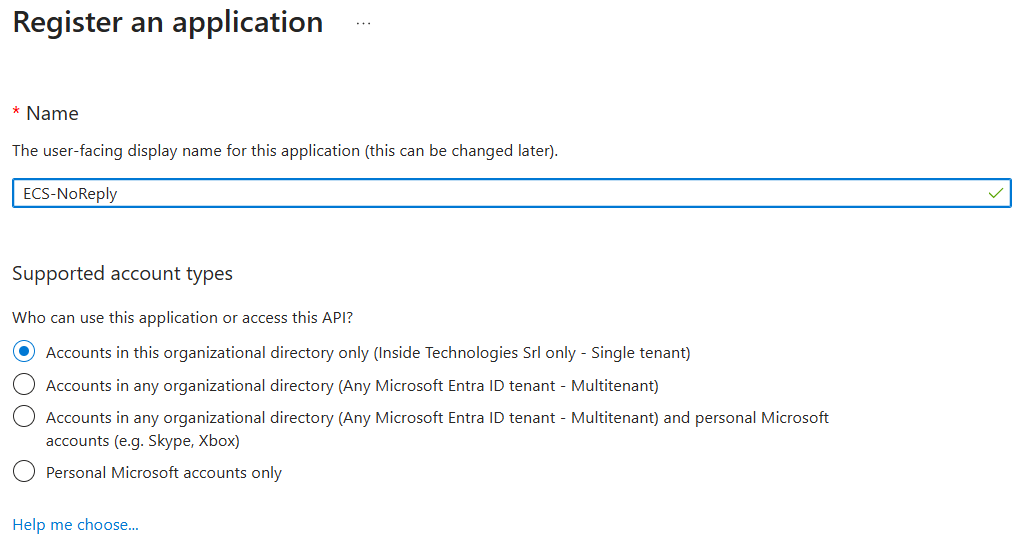
Assign Roles and Permissions
A critical step in configuring Azure Communication Services (ACS) for email delivery is ensuring that your registered application has the necessary permissions to interact with the service. After creating your Communication Service resource in Azure, navigate to the Access Control (IAM) section within the Azure portal.
Here, you must assign the appropriate role to your application registration – typically, this is the “Communication and Email Service Owner” role. This role assignment grants your application the rights required to send emails through ACS, establishing a secure and authorized connection between your app and the communication infrastructure. By following this process, you ensure that only trusted applications can utilize ACS for outbound email, maintaining both security and compliance within your environment.

Configure SMTP Usernames
The last step is add all the username that you want allow to send emails via ECS.
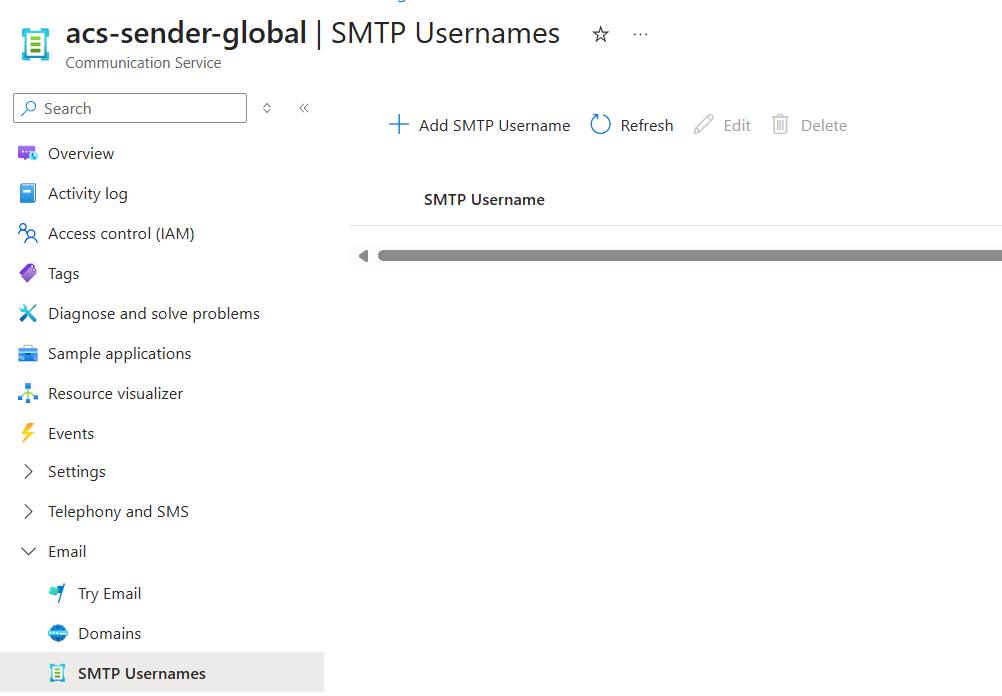
Select the Entra Application and the email that you want use. Remember that the email insert will be able to works only with the secret configured into the Entra Application – you can use the same identity for more emails account but is not a good idea in terms of security.
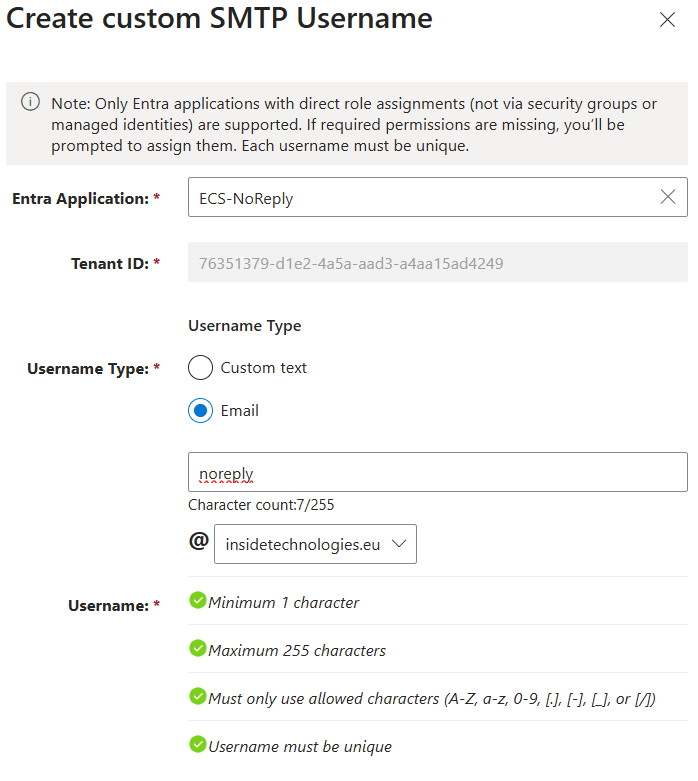
Note: Until you are not unlocked by Microsoft, to use custom address, the first item created must be DoNotReply. Anyway, you could pre-configure all the App Registration + custom SMTP Username.
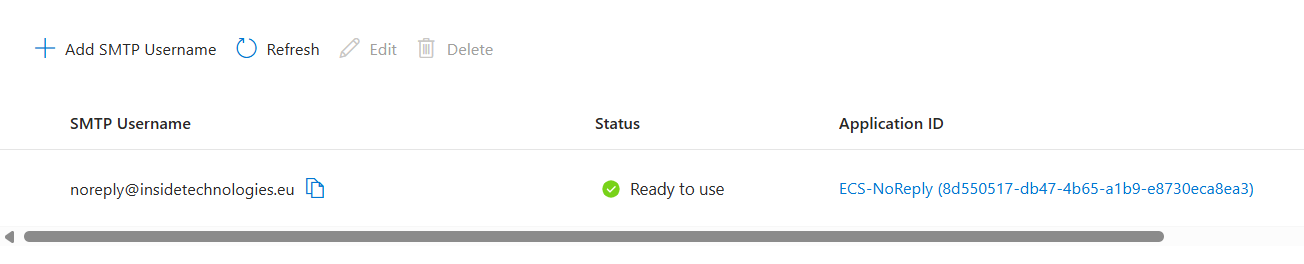
Test Configure Your Application
It’s time to test you new configuration. Create a PowerShell script with these email settings:
- SMTP Server: smtp.azurecomm.net
- Port: 587
- Username: The SMTP username you created (e.g. DoNotReply@contoso.com)
- Password: The client secret from your Entra app registration
Unlock Custom Alias
To use different alias, from DoNotReply, you must open a ticket support to Microsoft. You will be contacted to explain why you use this platform and what type of emails do you send.
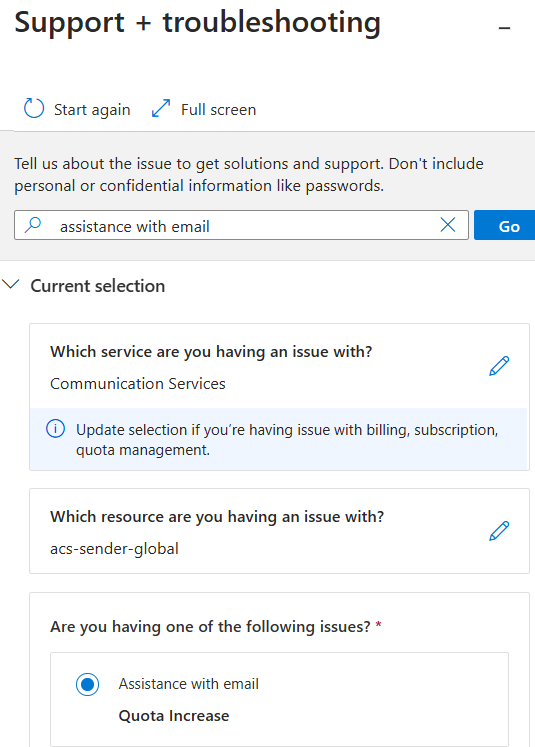
Once you are allowed to use custom alias, you can insert them into “MailFrom Addresses” area of Azure Communication Services.
Note: Don’t forget to do this step, otherwise you will not be able to send email outside.
Cost Considerations
So far, so good, but what is the price of this service? Estimate your costs based on expected email volume. For example, sending 1,000,000 emails at €0.00024 per email plus storage costs for message size can be calculated as follows: (1,000,000 * €0.00024) + (1,000,000 * 0.2 MB * €0.00012) = €253.75.
Conclusion
Migrating from Office 365 SMTP to Azure Communication Services modernizes your email delivery, enhances security, and prepares your organization for future communication needs. By following these steps, you’ll ensure a smooth transition and unlock the full potential of Azure’s communication platform.
#DBS